
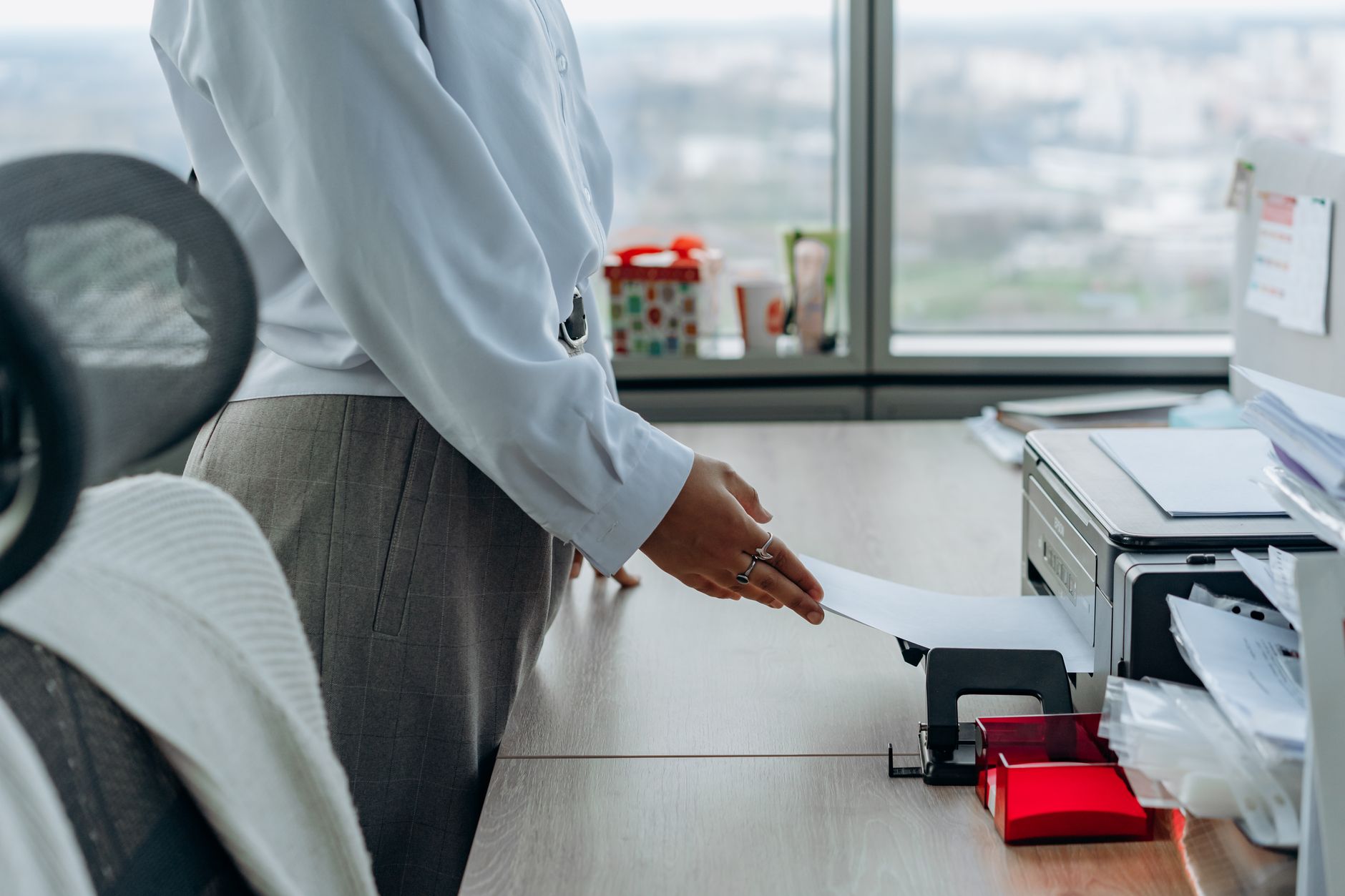
Printers remain essential in homes and offices across the U.S., even as digital workflows continue to evolve. In 2026, the average cost of a mid-range office printer hovers around $300–$800, while high-end models can exceed $2,000—making proper care more important than ever. A well-maintained printer not only delivers crisp, professional-quality prints but also reduces downtime, lowers ink or toner expenses, and minimizes e-waste.
Whether you're using an inkjet for family photos, a laser printer for business documents, or a multifunction device for scanning and copying, following these best practices will help you avoid common pitfalls like clogged printheads, paper jams, and premature hardware failure. Let’s dive into the essentials of printer care for 2026.
1. Regular Cleaning: The Foundation of Printer Longevity
Dust, ink residue, and paper fibers accumulate inside your printer over time, leading to poor print quality and mechanical issues. In 2026, with hybrid work still prevalent, many printers sit idle for days or weeks—making regular cleaning even more critical.
Exterior Cleaning
- Wipe down surfaces weekly with a microfiber cloth slightly dampened with water or isopropyl alcohol (70% or less). Avoid harsh chemicals like ammonia or bleach, which can damage plastic components.
- Clean the control panel gently to prevent dust buildup around buttons and touchscreens. Use a dry cotton swab for tight spaces.
- Dust the paper trays to prevent debris from entering the printer’s internal mechanisms.
Interior Cleaning
- Printhead cleaning (inkjet printers): Most modern inkjet printers (2024–2026 models) include an automated printhead cleaning utility in their software. Run this every 2–4 weeks if the printer is used regularly, or monthly for occasional use. For stubborn clogs, manual cleaning with a lint-free cloth and distilled water may be necessary.
- Laser printer maintenance: Laser printers are less prone to clogging but still require attention. Vacuum the interior (using a low-suction vacuum) every 3–6 months to remove toner dust. Avoid compressed air, as it can push debris deeper into the machine.
- Roller cleaning: Paper feed rollers collect dust and lose grip over time. Wipe them with a damp cloth or use a roller cleaning sheet (available for $5–$10 in 2026) to restore traction.
Pro Tip: Always unplug your printer before cleaning the interior to avoid electrical hazards or accidental activation.
2. Proper Ink and Toner Management
Ink and toner are among the most significant ongoing costs of printer ownership. In 2026, the average cost per page for inkjet printers is $0.05–$0.20, while laser printers range from $0.02–$0.10 per page. Mismanaging these consumables can lead to wasted money, poor print quality, or even damage to your printer.
Choosing the Right Supplies
- Use manufacturer-recommended cartridges for your specific model. While third-party or refilled cartridges are cheaper (often 30–50% less in 2026), they can void warranties and may cause leaks or clogs. If you opt for third-party ink, choose reputable brands like LD Products or 123Inkjets, which offer compatibility guarantees.
- Avoid counterfeit cartridges. In 2026, counterfeit ink and toner remain a $3 billion problem globally. These can damage your printer and produce poor-quality prints. Look for authentication labels (e.g., HP’s Security Label or Epson’s QR code verification).
Storage and Handling
- Store ink cartridges upright in a cool, dry place (ideally 50–77°F). Extreme temperatures or humidity can cause ink to dry out or leak.
- Don’t remove cartridges unnecessarily. If you must take them out (e.g., for travel), store them in an airtight container with a damp paper towel to prevent drying.
- Shake laser toner cartridges gently before installation to distribute the powder evenly.
Extending Ink/Toner Life
- Print in draft mode for internal documents. This uses up to 50% less ink without sacrificing readability.
- Use grayscale for black-and-white prints instead of color mode to conserve color ink.
- Enable "toner save" mode on laser printers to reduce toner usage by 10–20%.
- Print regularly. Inkjet printers that sit idle for weeks are prone to dried-out printheads. If you don’t print often, run a nozzle check or test page every 1–2 weeks.
Pro Tip: In 2026, many printers (e.g., Epson EcoTank, Canon MegaTank, HP Smart Tank) use refillable ink tanks instead of cartridges. While these systems reduce per-page costs, they still require regular use and proper sealing to prevent clogs.
3. Paper Handling Best Practices
Paper jams are one of the most common printer issues, accounting for ~30% of repair calls in 2026. Poor paper quality, incorrect loading, or environmental factors can all contribute to jams, misfeeds, and print quality problems.
Choosing the Right Paper
- Use the correct paper type for your printer. Most home/office printers work best with 20–24 lb bond paper (standard copy paper). For photos, use glossy or matte photo paper designed for your printer model.
- Avoid cheap or recycled paper with high dust content, as it can clog the printer’s rollers and sensors.
- Check paper weight limits. Most printers support 16–32 lb paper, but heavier stock (e.g., cardstock) may require manual feeding.
Loading Paper Correctly
- Fan the paper before loading to prevent static cling and multiple sheets feeding at once.
- Align the paper guides snugly against the stack to avoid skewing.
- Don’t overload the tray. Fill it to the maximum fill line (usually 100–250 sheets for standard trays).
- Store paper properly. Keep it in a cool, dry place (ideally 40–50% humidity) to prevent curling or moisture absorption.
Preventing Jams and Misfeeds
- Clean the paper path every 1–2 months with a lint-free cloth to remove dust and debris.
- Inspect rollers for wear. If they feel smooth or glossy, clean them with isopropyl alcohol or replace them (roller kits cost $10–$30 in 2026).
- Use the manual feed slot for envelopes, labels, or thick paper to avoid jams.
- Avoid mixing paper types in the same tray. If you need to switch between plain paper and photo paper, use a separate tray or feed manually.
Pro Tip: If your printer frequently jams, check for worn-out rollers or misaligned sensors. Many 2024–2026 models include self-diagnostic tools to identify paper path issues.
4. Software and Firmware Updates
In 2026, printers are more connected than ever, with Wi-Fi, cloud printing, and mobile app integration becoming standard features. Keeping your printer’s software and firmware up to date ensures security, compatibility, and performance improvements.
Why Updates Matter
- Security patches: Printers are a common target for cyberattacks (e.g., PrintNightmare vulnerability in 2021). Manufacturers like HP, Canon, and Brother release quarterly security updates to address risks.
- Bug fixes: Updates resolve issues like print spooler errors, connectivity problems, and driver conflicts.
- New features: In 2026, many printers support AI-powered scanning, automatic color correction, and voice-activated printing—but these features require the latest firmware.
How to Update Your Printer
- Check for updates manually:
- Windows: Go to Settings > Devices > Printers & scanners > [Your Printer] > Manage > Update driver.
- Mac: Open System Preferences > Printers & Scanners > [Your Printer] > Options & Supplies > Driver.
- Mobile: Use your printer’s app (e.g., HP Smart, Epson iPrint, Canon PRINT) to check for updates.
- Enable automatic updates (if available). Many 2024–2026 printers support automatic firmware updates via Wi-Fi.
- Visit the manufacturer’s website for the latest drivers. For example:
Pro Tip: If your printer is 5+ years old, check if it’s still supported by the manufacturer. Some brands discontinue updates after 3–5 years, leaving older models vulnerable to security risks.
5. Environmental Factors and Long-Term Storage
Where and how you store your printer can significantly impact its lifespan. In 2026, with remote work and seasonal use still common, many printers sit unused for extended periods.
Ideal Operating Conditions
- Temperature: 50–90°F (10–32°C). Avoid placing printers near heaters, air conditioners, or windows where temperature fluctuations can cause condensation or warping.
- Humidity: 40–60% relative humidity. High humidity can cause paper jams and ink smudging, while low humidity increases static electricity (leading to misfeeds).
- Dust control: Keep printers in a clean, low-dust environment. If your workspace is dusty, consider a printer cover (available for $15–$40 in 2026).
Long-Term Storage Tips
If you won’t use your printer for 3+ months, follow these steps to prevent damage:
- Remove ink/toner cartridges and store them separately (see Section 2 for storage tips).
- Clean the printer thoroughly (interior and exterior) to remove dust and ink residue.
- **Wrap the printer in a plastic bag (e.g., a garbage bag) to protect it from dust and moisture.
- **Store in a cool, dry place away from direct sunlight.
- Avoid stacking heavy objects on top of the printer.
Pro Tip: If you’re storing a laser printer, remove the toner cartridge and imaging drum (if separate) to prevent toner leakage.
Final Thoughts: Keep Your Printer Running Like New in 2026
Printers are an investment, and with the right care, they can last 5–10 years (or longer for high-end models). By following these best practices—regular cleaning, proper ink/toner management, smart paper handling, software updates, and environmental control—you’ll avoid costly repairs, reduce waste, and enjoy crisp, reliable prints for years to come.
Run a shop that services printers? The Quick Repairs keeps printer and scanner jobs, parts and customer records in one system, from intake through to the invoice. See how it works for printer and scanner repair businesses, or talk to us about your workshop.
External References:
- HP Printer Maintenance Guide: https://support.hp.com/us-en/document/c00022567
- Epson Printhead Cleaning Tips: https://epson.com/Support/wa00821
- Canon Paper Handling Best Practices: https://www.usa.canon.com/support
- Consumer Reports Printer Buying Guide (2026): https://www.consumerreports.org/appliances/printers/buying-guide/